🖥️ Version Desktop

image

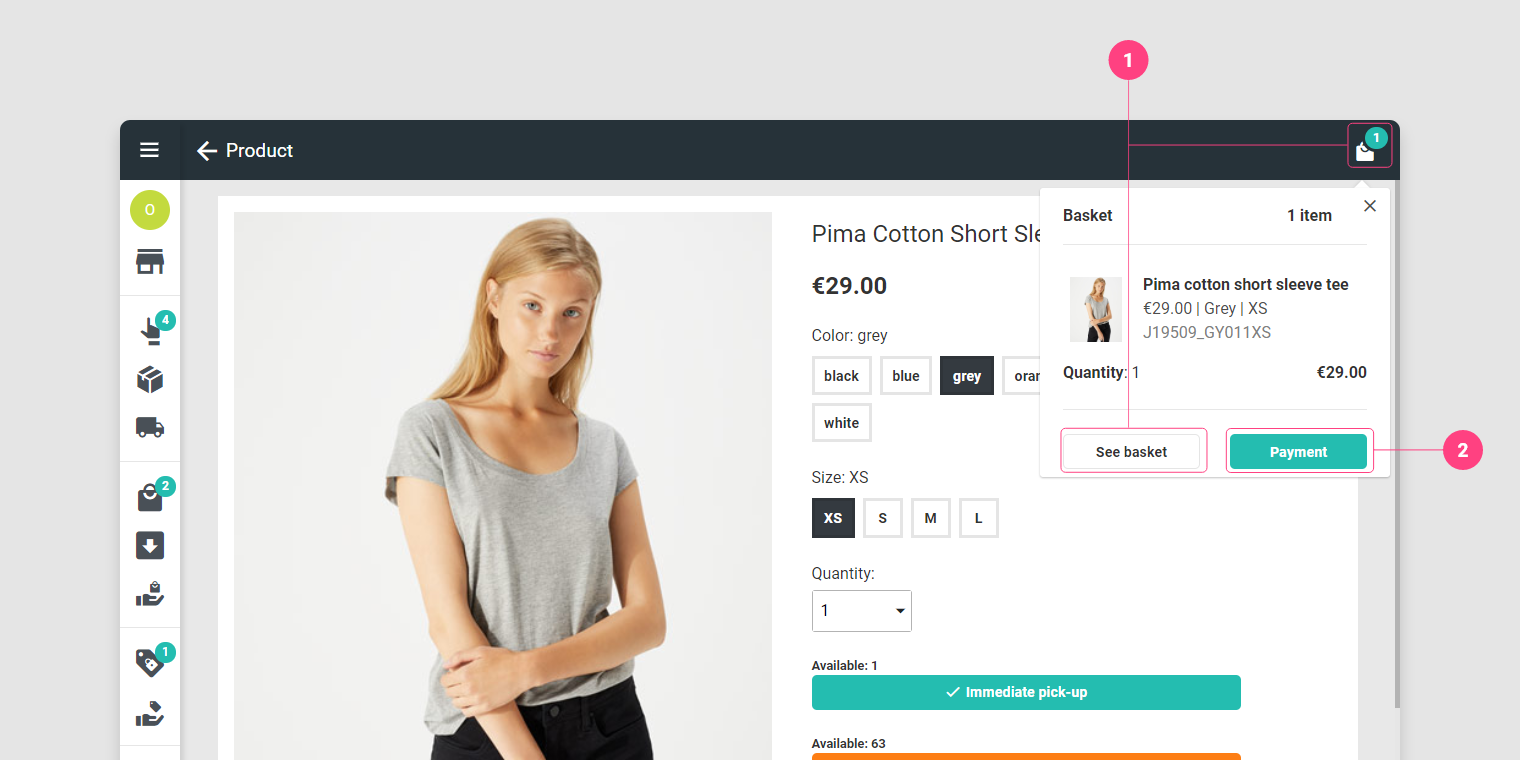
After pressing Immediate withdrawal or Order.
  1. Press on View basket or on the icon to consult the basket.
  2. You can go directly to the payment step by pressing Payment.

image

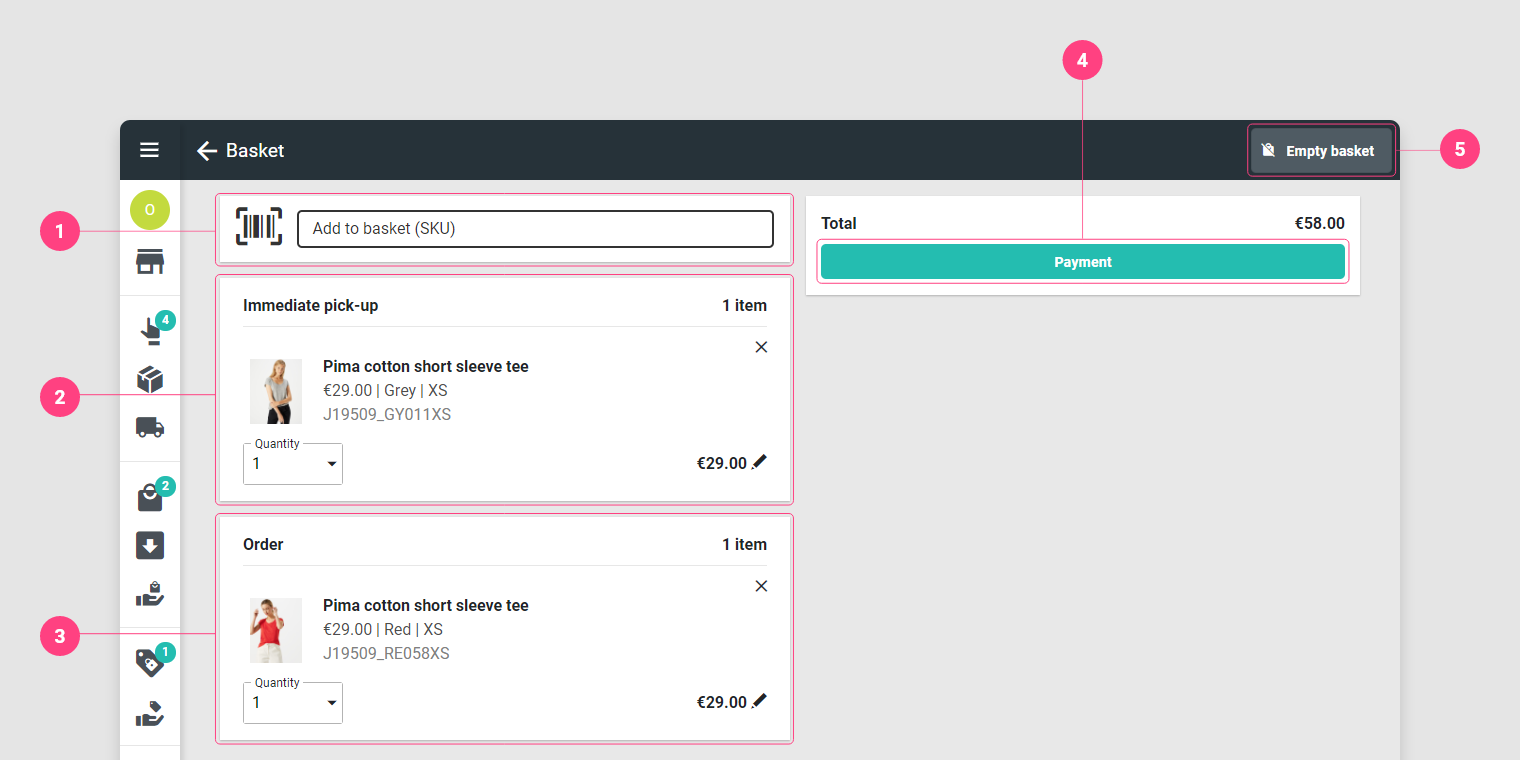
  1. It is possible to use this field to directly add an item to the cart by entering/scanning its SKU.

In this example it is a mixed basket.

  1. This list corresponds to items to be removed immediately, so they are physically in the store.

    We find the information on the article, its quantity and its price. [Optional] Edit the price of the item to apply a discount by pressing

  2. This list corresponds to the items that will be ordered and then delivered to the customer. We find the information on the article, its quantity and its price. [Optional] Edit the price of the item to apply a discount by pressing

  3. Once the basket has been validated, press Payment.

  4. To empty the basket, press the button Empty basket.
image

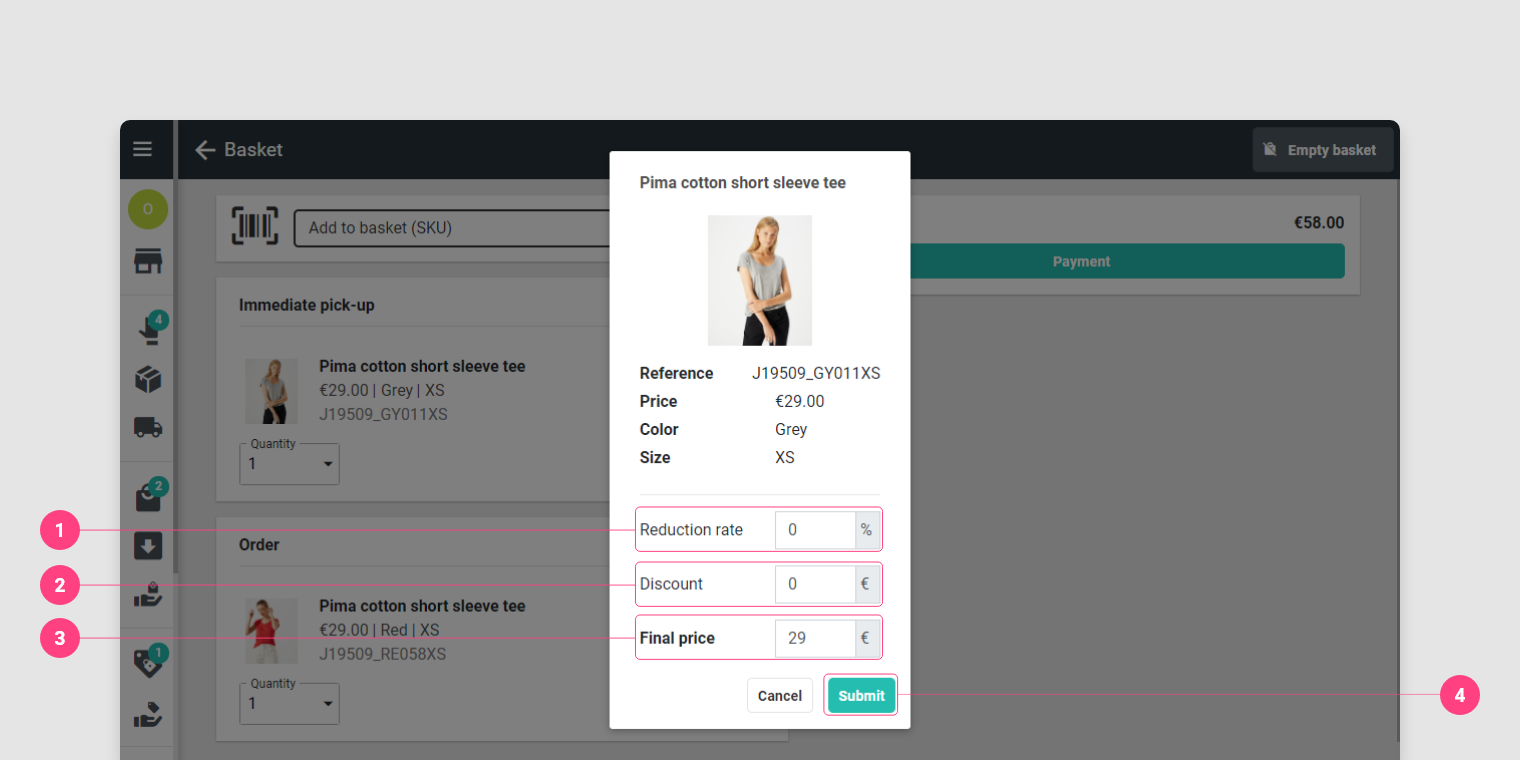
After pressing there are 3 ways to edit the price of the item:
  1. Apply % discount.
  2. Apply a reduction by indicating an amount to be deducted.
  3. Give a new price.
  4. Press Validate.

image

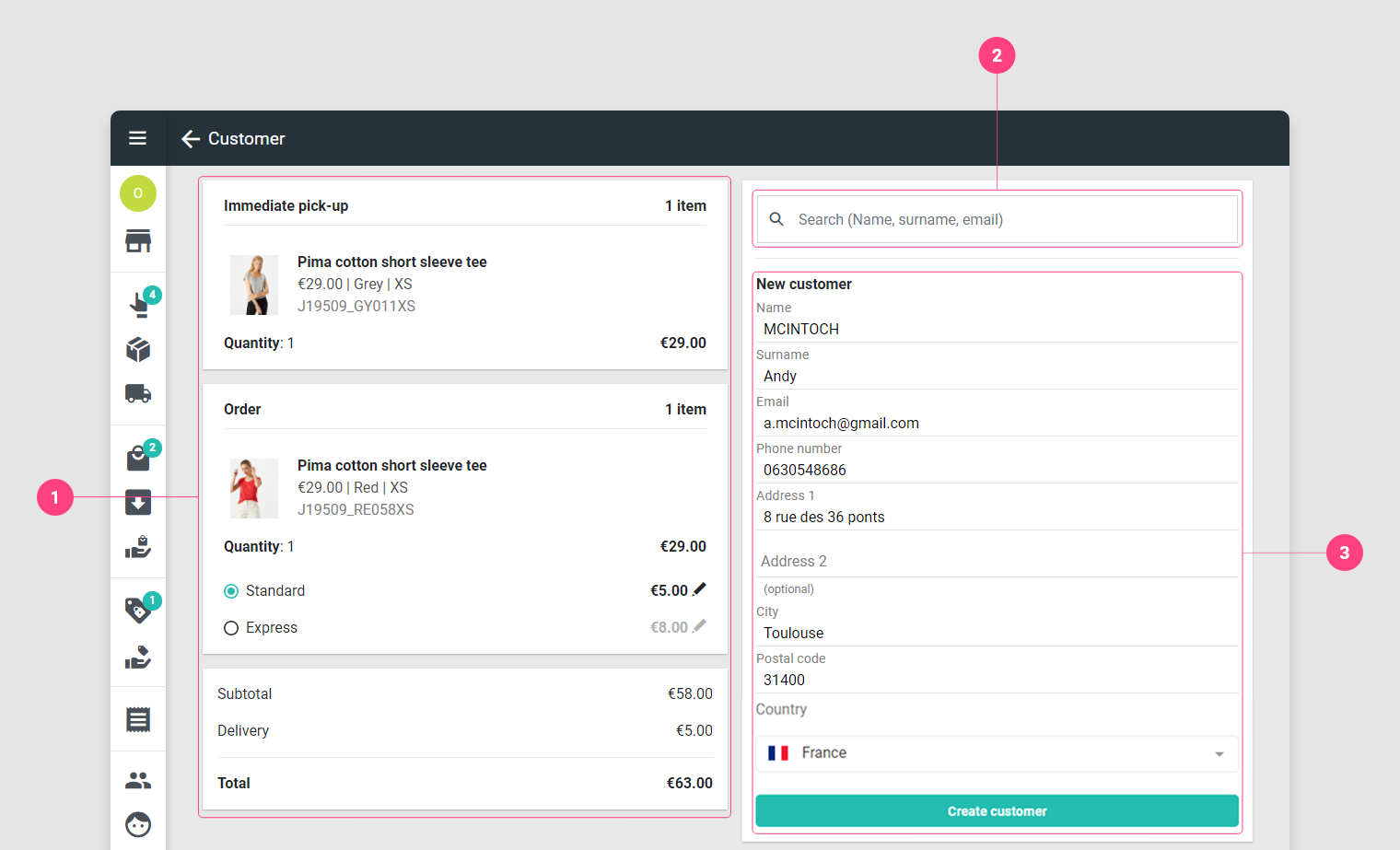
  1. Delivery options and total order cost.
  2. If the customer has already been created, it is possible to find it by searching by name, first name or email address.
  3. Otherwise, create a new customer.

image

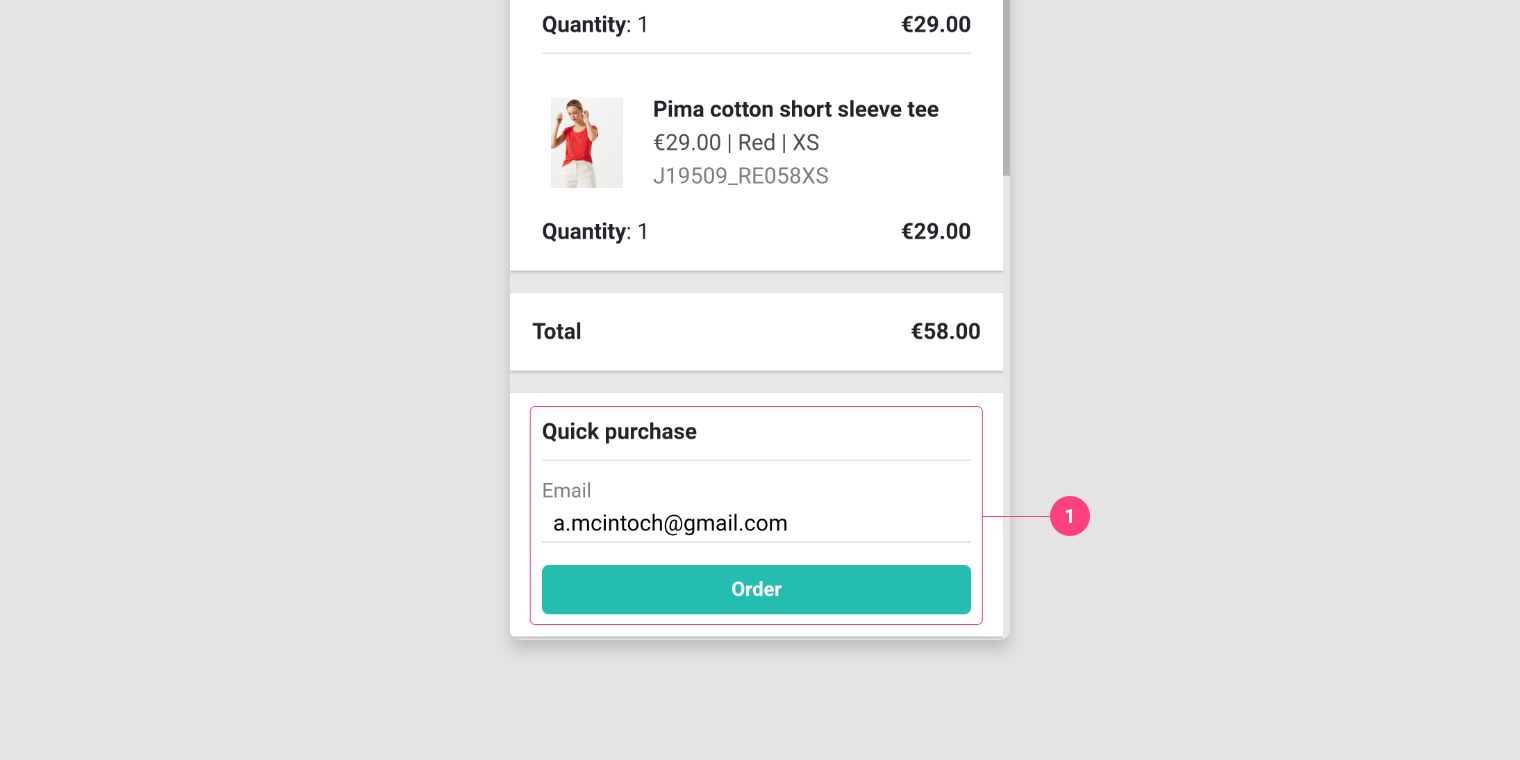
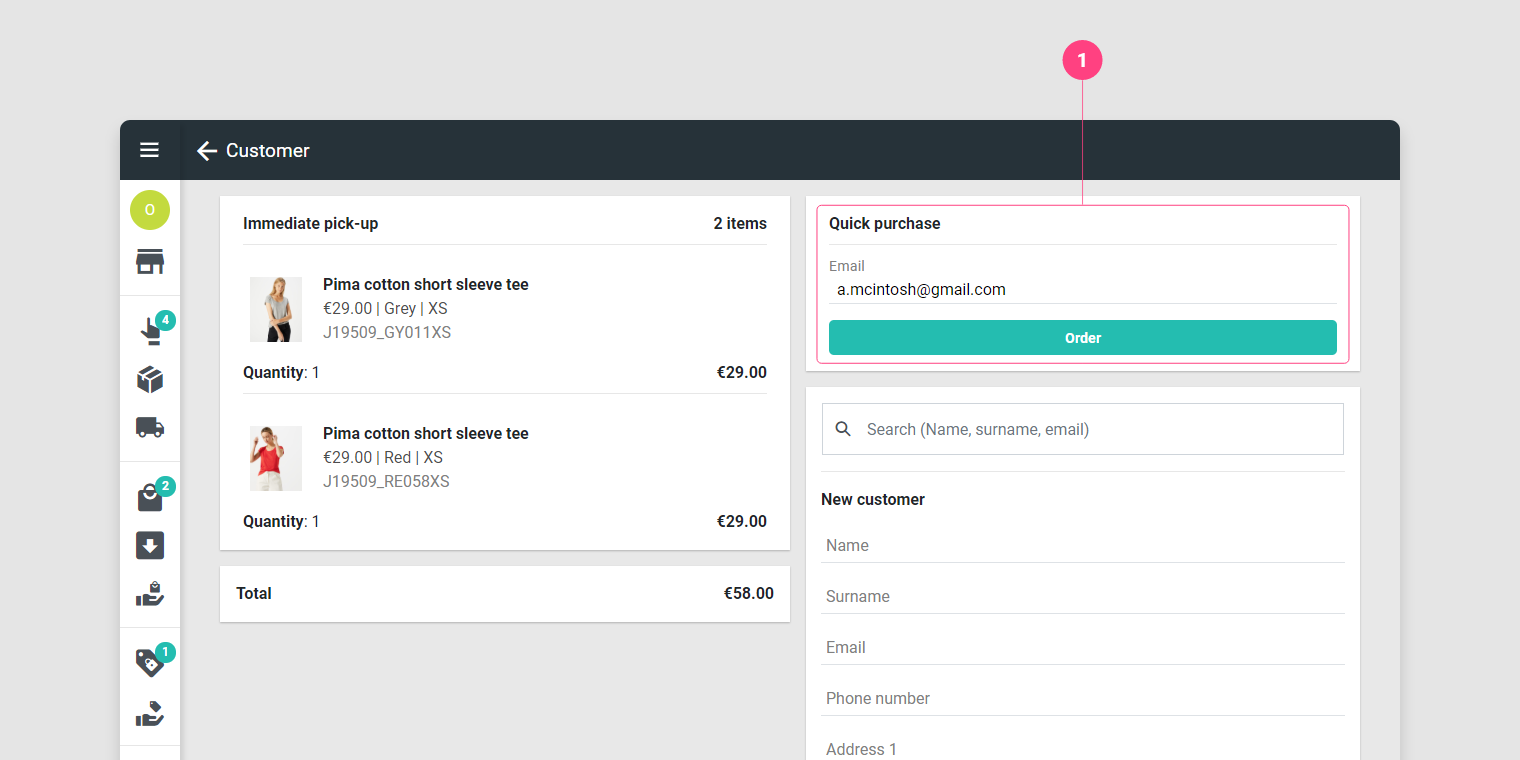
If the basket consists only of immediate withdrawal items.

  1. Enter only the customer's email address then press Order.

image

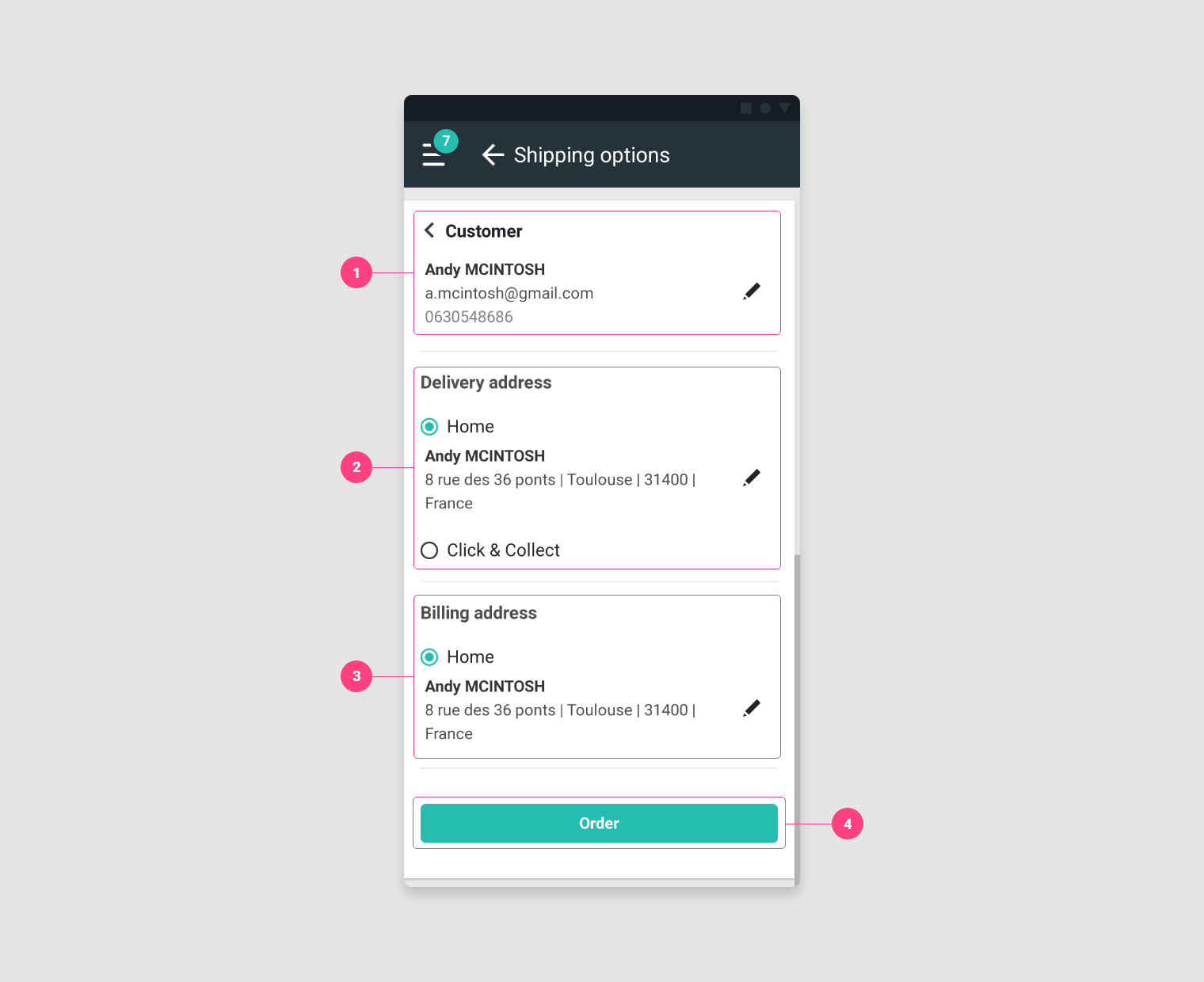
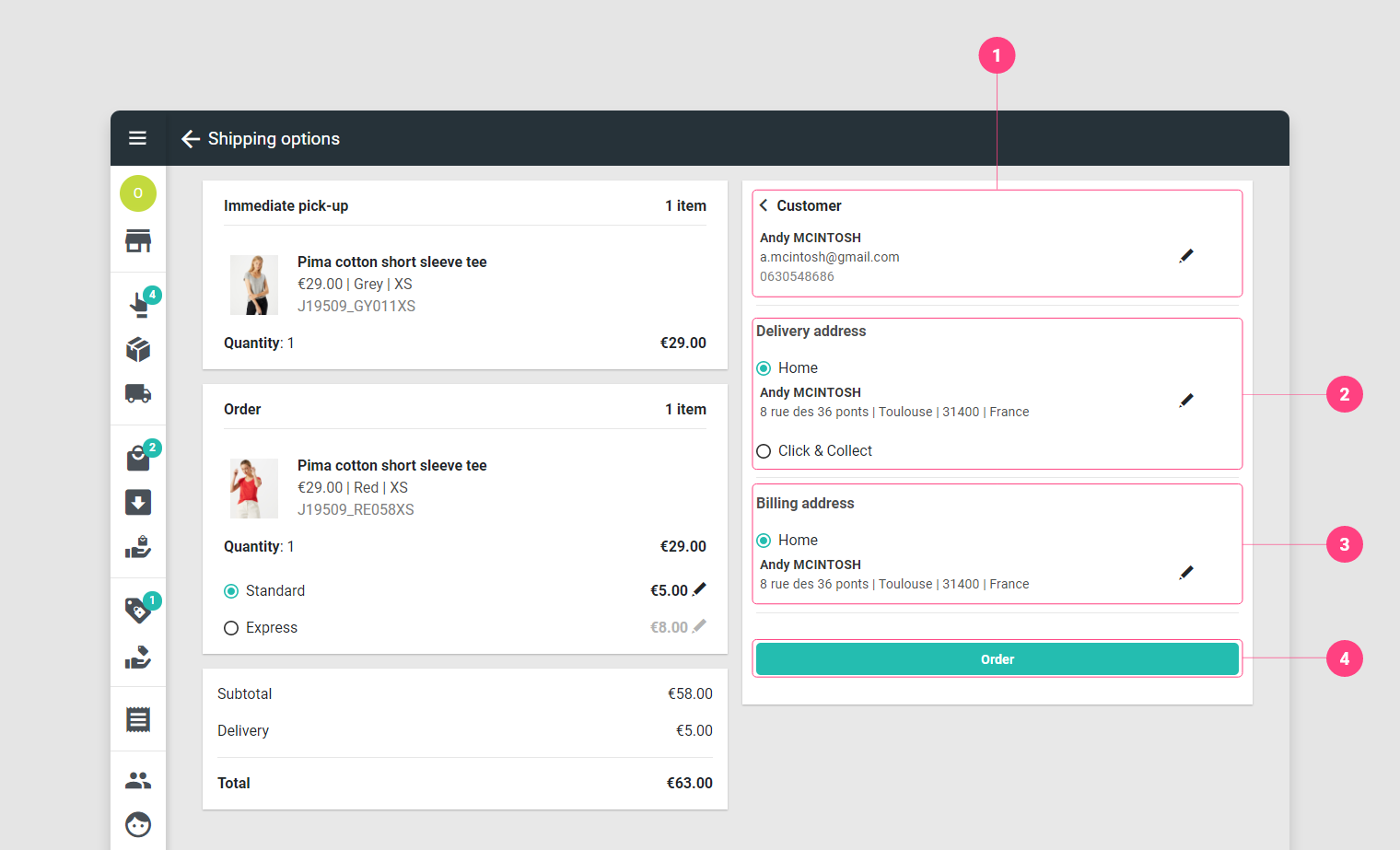
If the basket consists of at least one item to order.

  1. [Optional] Edit customer information by pressing
  2. Choose the delivery address:
  3. [Optional] Change billing address.
  4. Press the Order button.

image

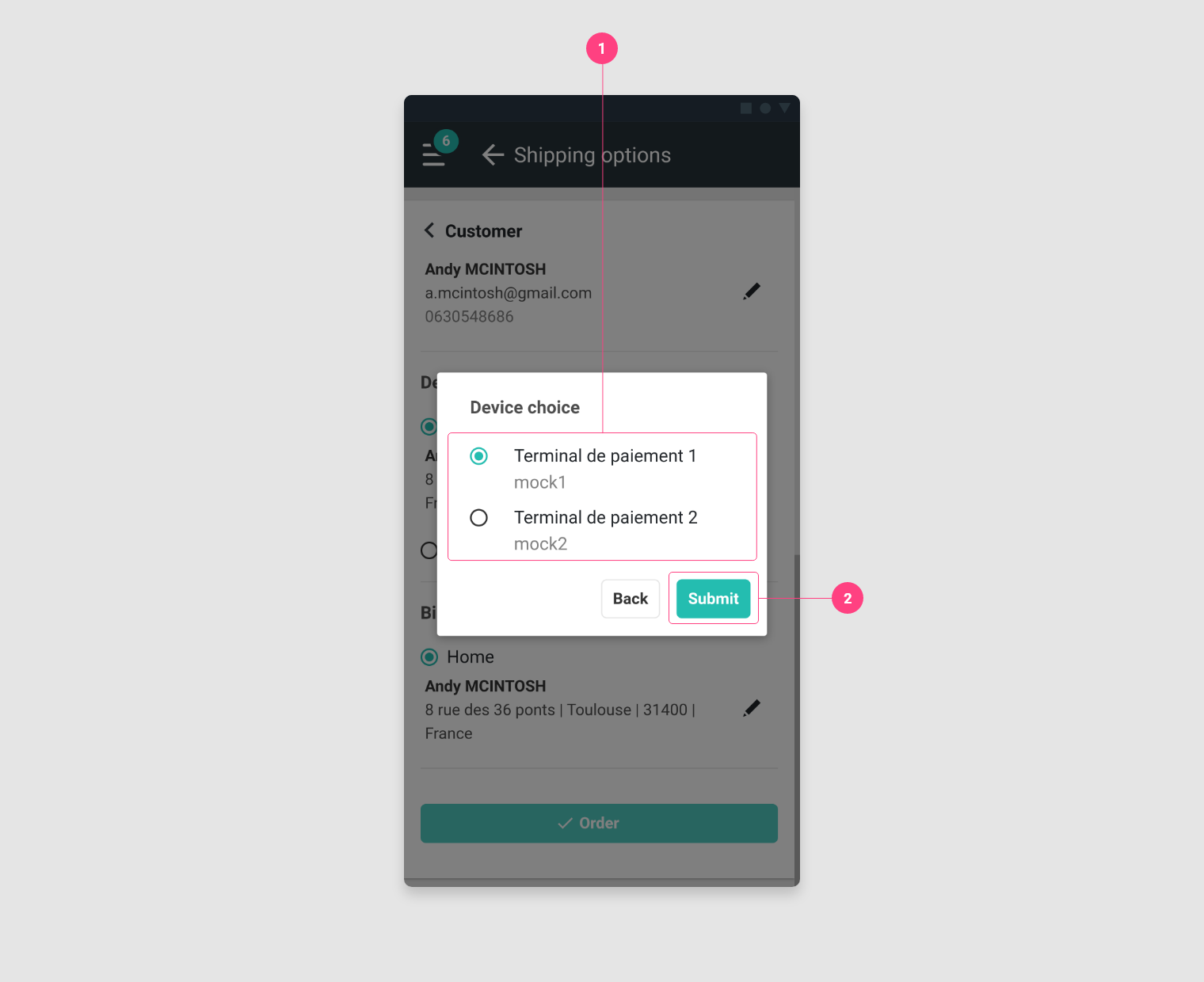
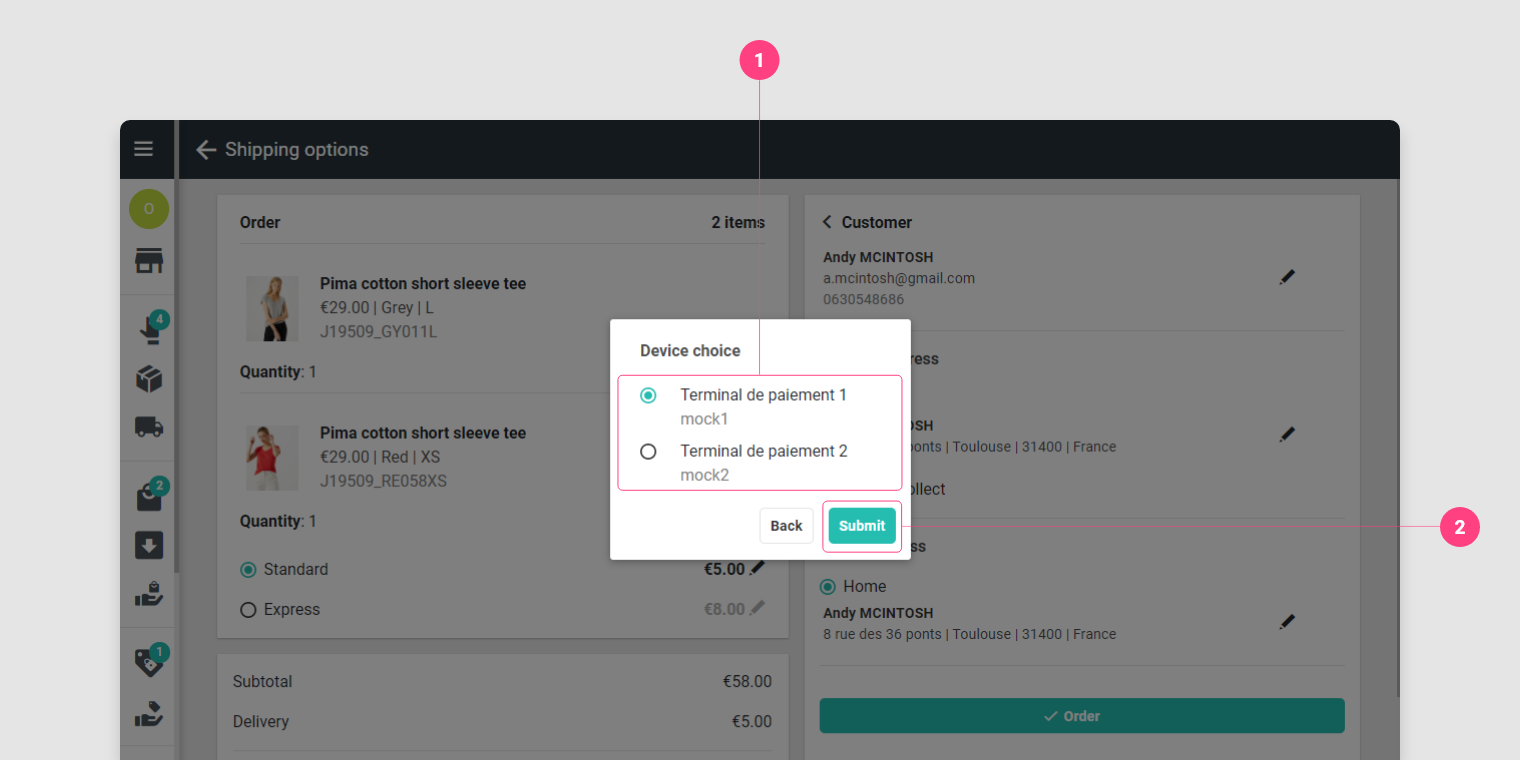
  1. Choose the payment terminal.
  2. Press Validate.

📱 Version Mobile

image

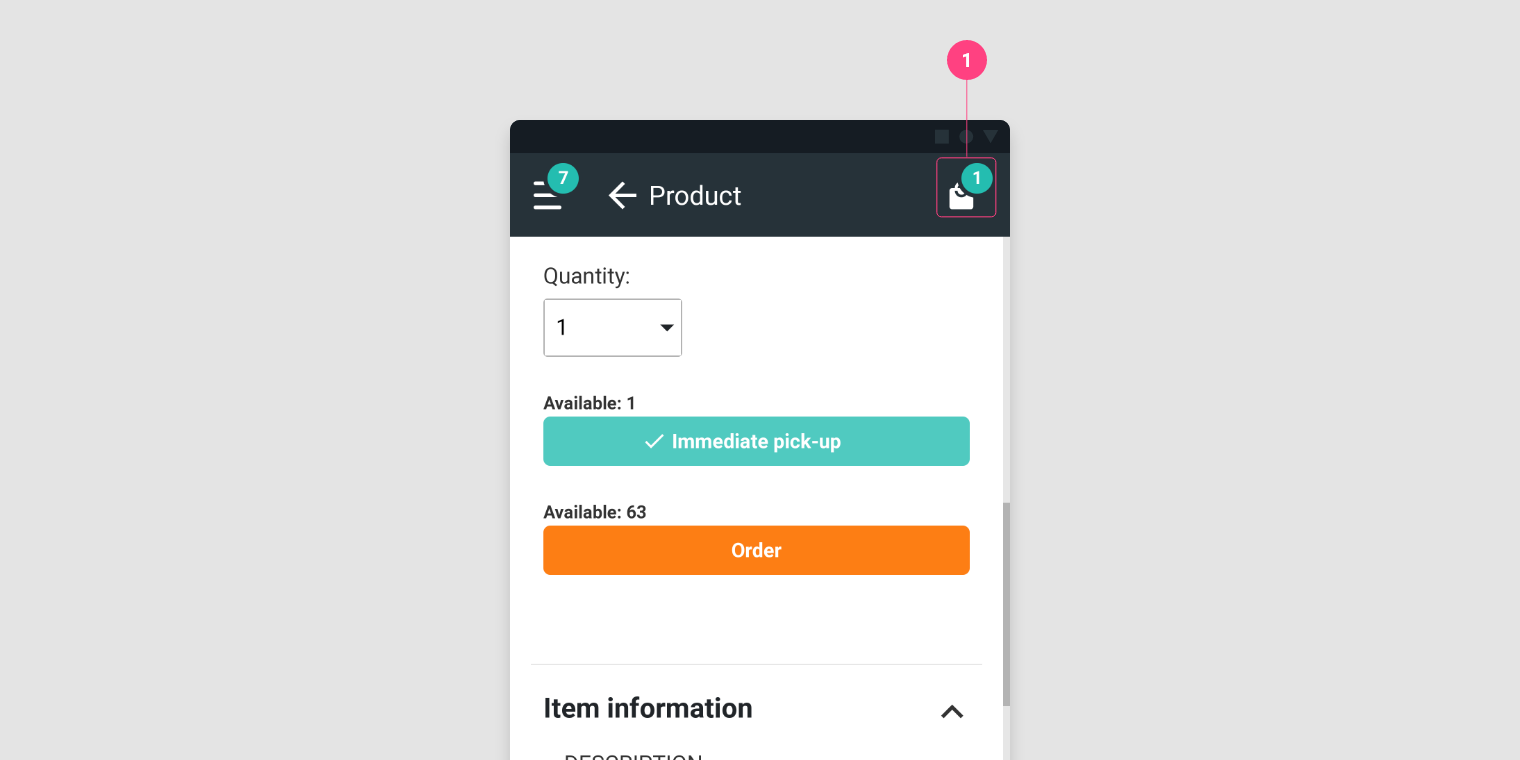
  1. After pressing Immediate withdrawal or Order.

    1. Press on View basket or on the icon to consult the basket.

    image

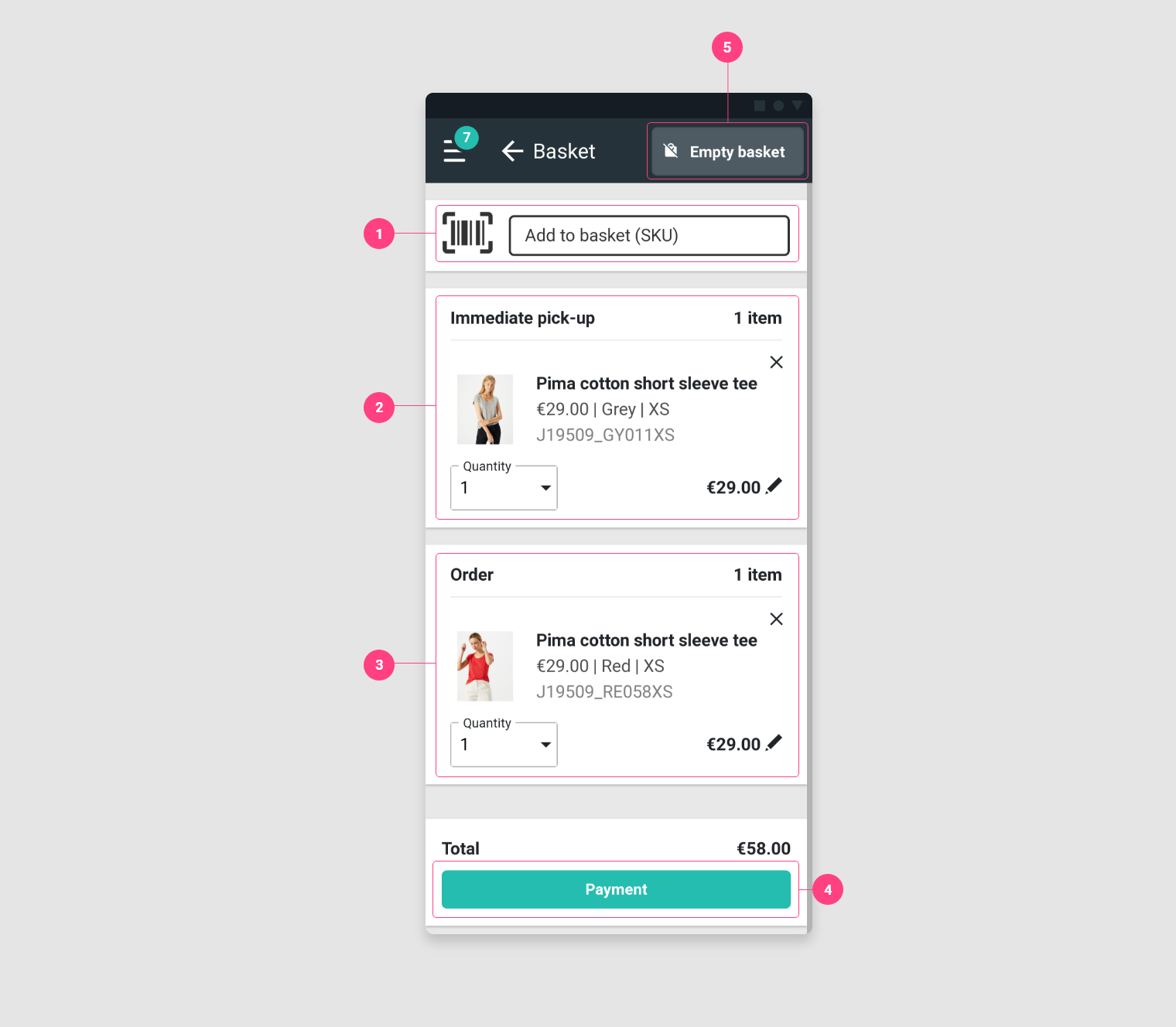
    1. It is possible to use this field to directly add an item to the cart by entering/scanning its SKU.

      In this example it is a mixed basket.

    2. This list corresponds to items to be removed immediately, so they are physically in the store.

      We find the information on the article, its quantity and its price. [Optional] Edit the price of the item to apply a discount by pressing

    3. This list corresponds to the items that will be ordered and then delivered to the customer. We find the information on the article, its quantity and its price. [Optional] Edit the price of the item to apply a discount by pressing

    4. Once the basket has been validated, press Payment.

    5. To empty the basket, press the button Empty basket.

    image

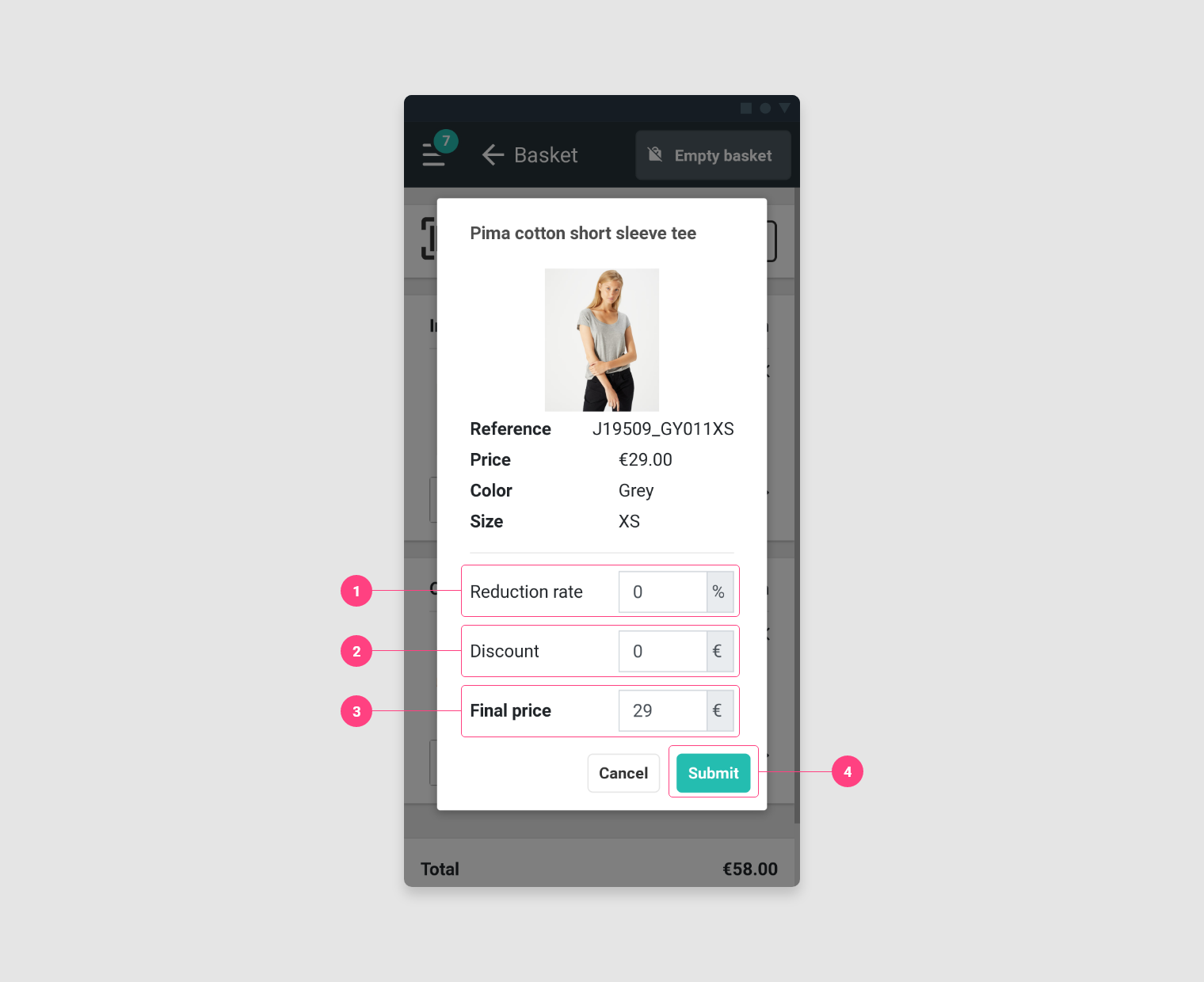
    After pressing there are 3 ways to edit the price of the item:
    1. Apply % discount.
    2. Apply a reduction by indicating an amount to be deducted.
    3. Give a new price.
    4. Press Validate.

    image

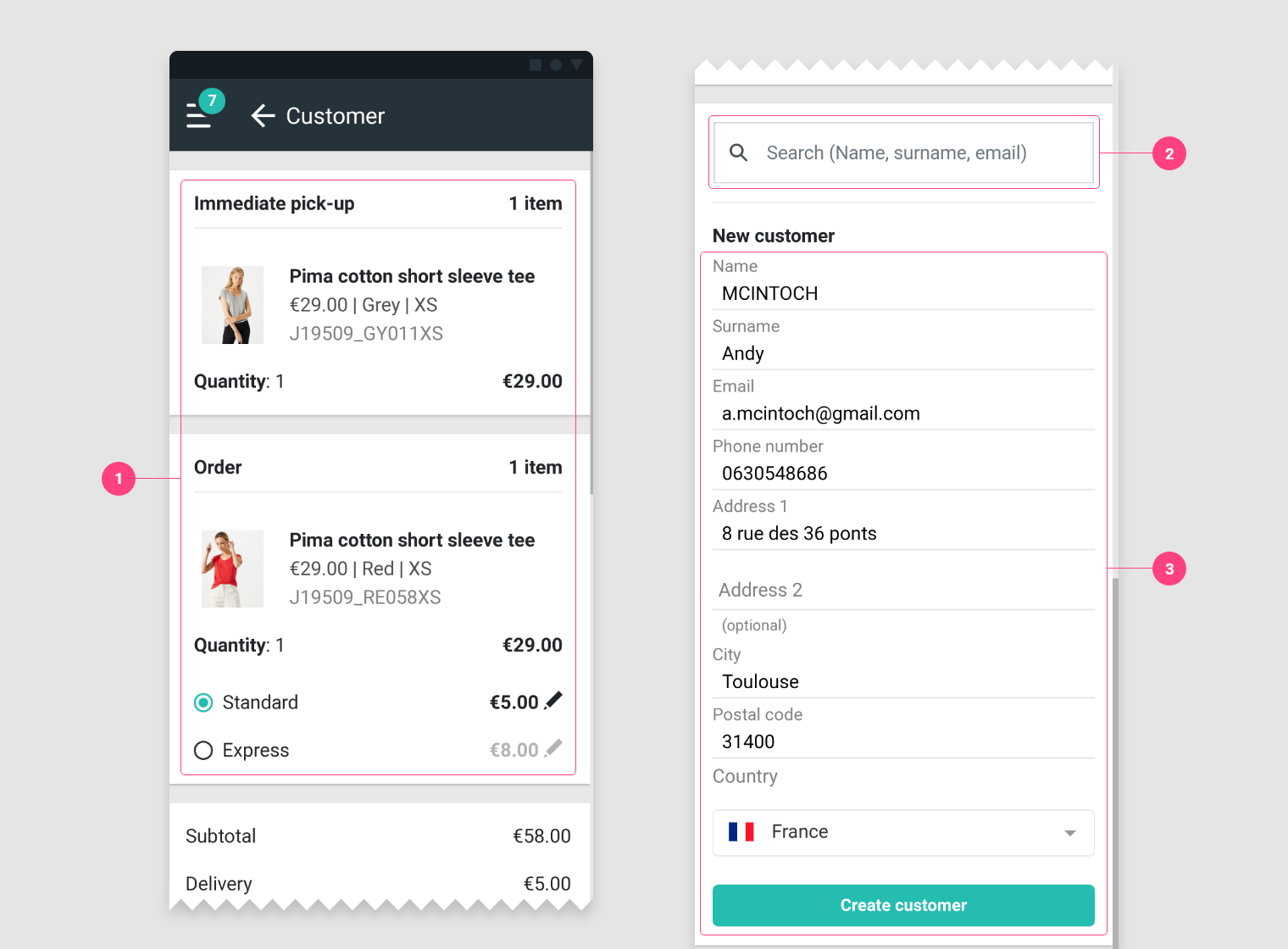
    1. Delivery options and total order cost.
    2. If the customer has already been created, it is possible to find it by searching by name, first name or email address.
    3. Otherwise, create a new customer.

    image

    If the basket consists only of immediate withdrawal items.
    1. Enter only the customer's email address then press Order.

    image

    If the basket consists of at least one item to order.
    1. [Optional] Edit customer information by pressing
    2. Choose the delivery address:
      • Home: [Optional] Modify the home address.
      • Click & Collect: Select a store from the list.
    3. [Optional] Change billing address.
    4. Press the Order button.

    image

    1. Choose the payment terminal.
    2. Press Validate.